
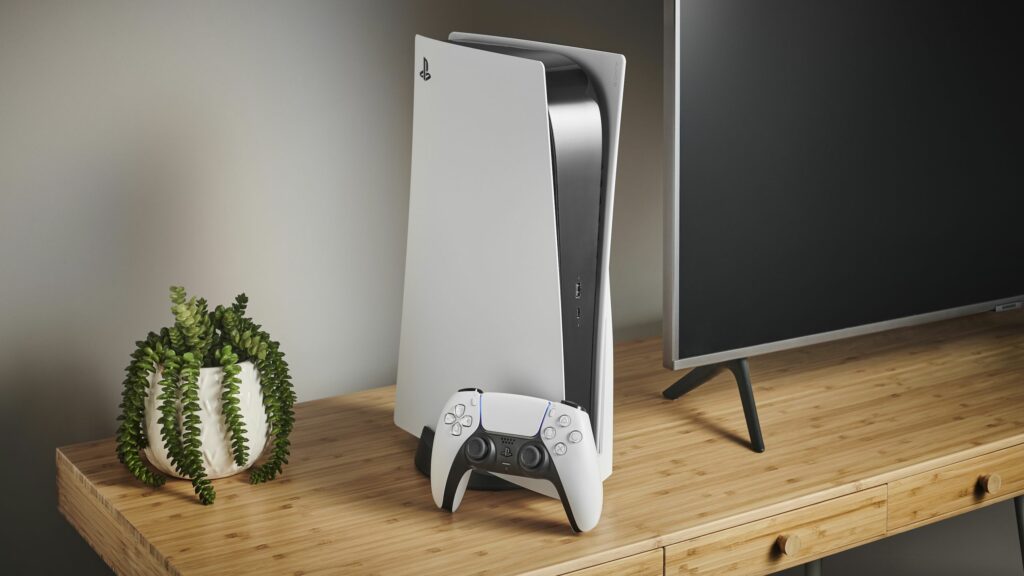
Setting up your new PS5 is exciting, but before you dive headlong into your games, there are several settings you should adjust to get the best experience. Sony’s default settings aren’t always optimal — some waste storage space, others drain your controller battery faster, and a few miss out on features your TV can actually support.
Taking 10 minutes to configure these settings now saves frustration later and ensures you’re getting the most out of your console. You don’t need to dig through every menu option; just focus on these seven essential settings that make the biggest difference.
1. Turn on automatic login

Tired of selecting your profile every single time you power on your PS5? If you’re the only person using your console, there’s no reason to sit through that account selection screen. Enable automatic login and jump straight into your games.
To do this, go to Settings, Users and Accounts, Login Settings and toggle on Log In to PS5 Automatically. From now on, your PS5 will boot directly to your home screen without asking who’s playing. This might seem like a small time-saver, but when you’re eager to start gaming after a long day, every second counts.
If other people use your PS5, they’ll need to manually switch users after the console boots up, but for single-user households, this is a major convenience.
2. Extend your DualSense controller’s battery life

The PS5’s DualSense controller offers impressive features but can drain quickly during extended gaming sessions.
Start by adjusting the controller’s indicator brightness by navigating to Settings, Accessories, Controller (General), Controller Indicators Brightness and changing it from Standard to Dim. This small change reduces power consumption without affecting functionality.
Next, consider modifying the haptic feedback intensity. In the same Controller menu, locate Trigger Effect Intensity and Vibration Intensity and change both from Standard to Weak. For even greater battery savings, you can turn these features off completely, though you’ll lose the immersive feedback that makes many PS5 games special.
Finally, set your controller to automatically power down when not in use. Go to System, Power Saving, Set Time Until Controllers Turn Off and select After 10 Minutes. This is particularly useful when watching movies or shows, where you don’t need the controller to stay active.
3. Set up game presets
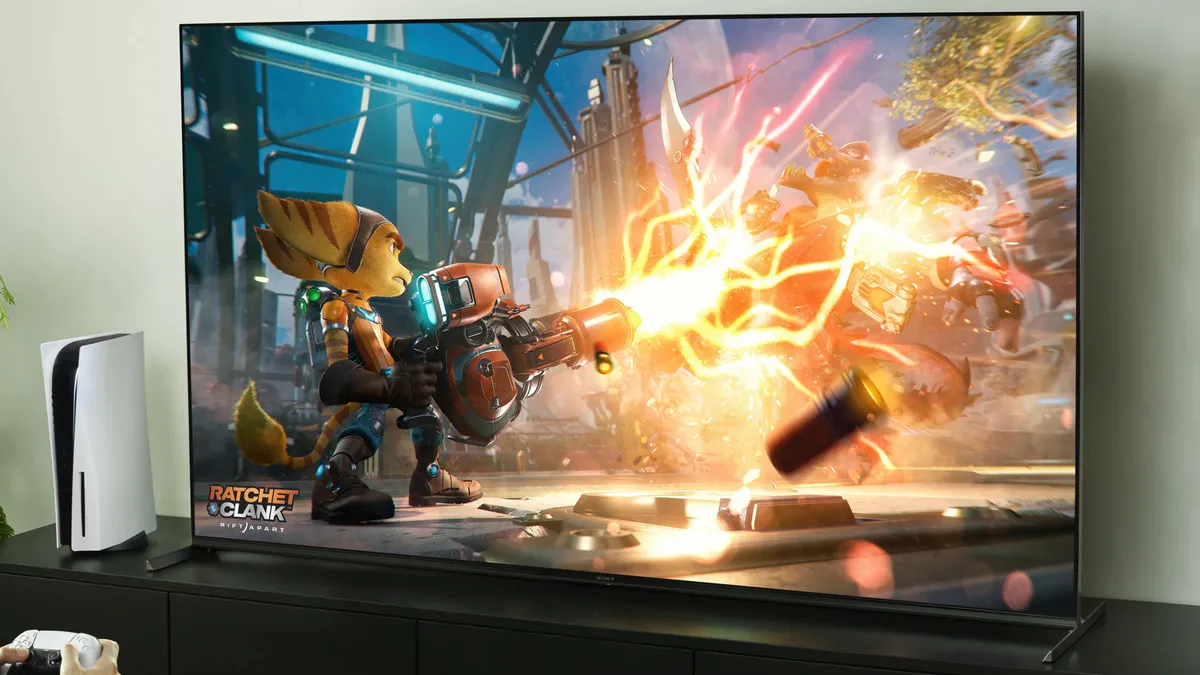
Game Presets are one of the PS5’s most underrated features. Instead of adjusting difficulty, performance mode, subtitle size, and control schemes in every single game you play, you can configure your preferences once and have them automatically apply across compatible titles.
Head to Settings, Saved Data and Game/App Settings, and Game Presets to set your defaults. You can set default difficulty levels, decide whether to prioritize performance mode or resolution mode, enable or disable inverted controls, and configure subtitle preferences.
Not every game supports these presets, but a growing number do. Setting your preferences now means less time fiddling with options menus and more time actually playing.
4. Optimize visual output for your display
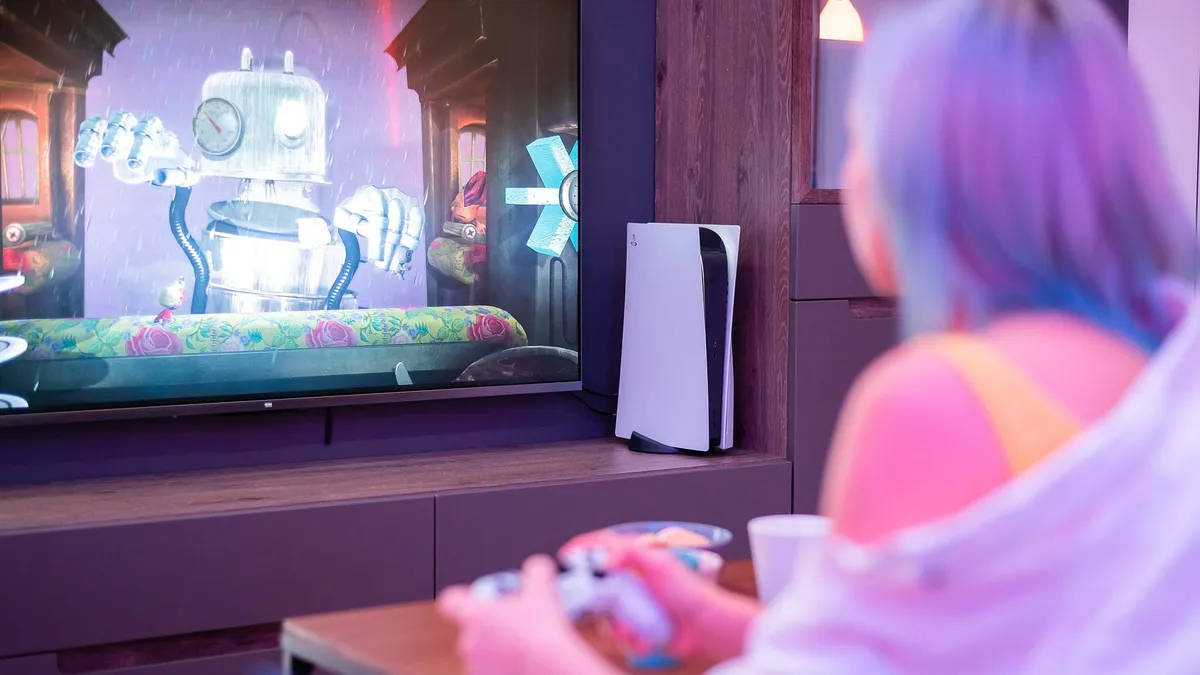
Proper video settings ensure you’re getting the best possible visual experience from your PS5, especially if you have one of the best gaming TVs around.
Navigate to Settings, Screen and Video, Video Output and look for Variable Refresh Rate (VRR). Next, set this to Automatic and enable Apply to Unsupported Games. VRR reduces screen tearing and stuttering by synchronizing your TV’s refresh rate with the game’s frame rate.
While in the same menu, set both Auto Low Latency Mode (ALLM) and 120Hz Output to Automatic. These features reduce input lag and allow for smoother motion in supported games. Your TV will need HDMI 2.1 support to take full advantage of these options.
For the best color reproduction, ensure HDR is set to Always On, then run the HDR calibration wizard to optimize brightness and contrast for your specific display. Finally, set both Deep Color Output and RGB Range to Automatic to ensure proper color depth and accuracy.
5. Enable Remote Play
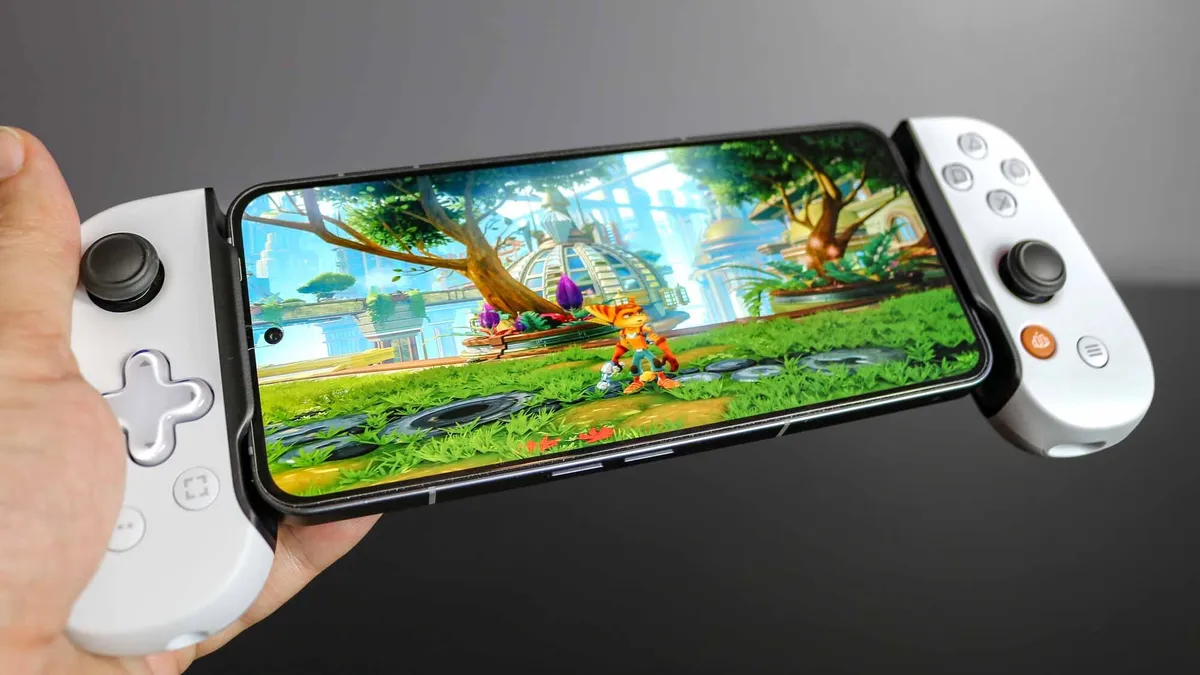
Remote Play lets you stream games to other devices when you’re away from your TV. Whether you’re on a lunch break, traveling, or someone else is using the television, you can continue playing on your phone, PC, PS4, or PlayStation Portal.
Go to Settings, System, Remote Play and toggle it on. This alone enables the feature, but there’s one more step to make it truly convenient. Navigate to Settings, System, Power Saving, Features Available in Rest Mode and enable Stay Connected to the Internet. This allows your PS5 to wake up remotely even when it’s in rest mode, so you don’t need to leave it running all the time.
Once configured, download the PlayStation Remote Play app on whatever device you want to use, sign in with your PlayStation Network accountand connect to your console.
6. Enhance privacy and security settings

The PS5 collects various types of data by default, but you can adjust these settings to better protect your privacy.
Start by navigating to Settings, Users and Accounts, Privacy, View and Customize Your Privacy Settings. Here you can control who sees your real name, profile picture, friends list, and gaming activity. Consider setting most options to No One or Close Friends Only to limit your online visibility.
Next, under Privacy, find Control how your data is collected and used to access three important options: Data You Provide, Personalization, and Voice Data Collection. Change Data You Provide to Limited, consider turning off all Personalization options, and set Voice Data Collection to Don’t Allow if you’re concerned about voice data privacy.
These simple adjustments help protect your information while still allowing you to enjoy your PlayStation’s online features and community aspects.
7. Disable trophy video recording

Every time you unlock a trophy, the console automatically records a 14-second video clip of the moment. If you’re an active player, these clips accumulate fast and eat up gigabytes of space you could be using for actual games.
Navigate to Settings, Captures and Broadcasts, Trophies and toggle off Save Trophy Videos. Unless you’re creating content or love rewatching your trophy moments, you’ll never miss these clips.
The storage savings alone make this worth doing, especially if you have a lot of games installed.

Follow Tom’s Guide on Google News to get our up-to-date news, how-tos, and reviews in your feeds. Make sure to click the Follow button.
More From Tom’s Guide

Back to Game Consoles

Source link